

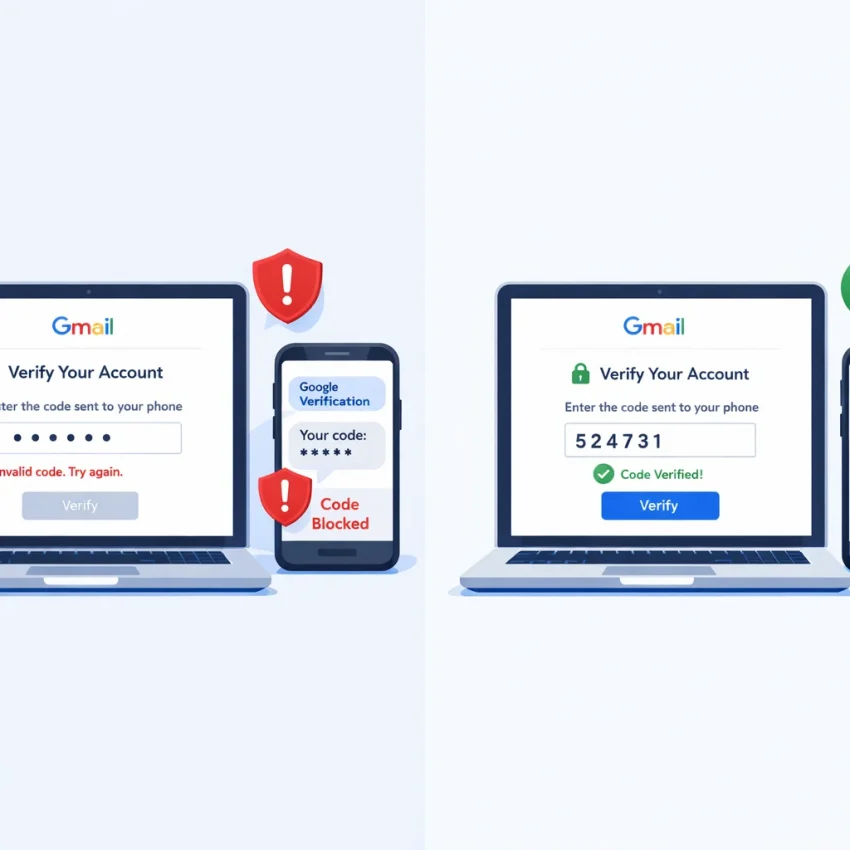
Receive SMS for Gmail: Common Verification Issues and How to Solve Them with SmsPva
People usually search receive sms gmail when they are already blocked in Google verification. They are not looking for a Gmail tutorial. They are trying to finish signup or account confirmation, but the SMS step fails.
The failure can look simple, but the cause often is not. Sometimes no OTP arrives. Sometimes Google rejects the number before sending anything. Sometimes the same flow keeps asking for phone verification again. These issues look similar, but they happen at different stages.
That is why troubleshooting comes first. If Google never accepted the number, waiting longer will not help. If Google accepted the number and said it sent a code, the problem moves to delivery, timing, or session state. Using a service-specific workflow on Receive SMS online gives you a cleaner starting point than guessing with a generic number.
This guide explains what each Gmail or Google verification problem usually means, how to diagnose it, and how to use SmsPva more carefully so you avoid loops, wasted retries, and unnecessary lockouts.
Why people search “receive SMS Gmail” — and what usually goes wrong
Users searching for receive sms for gmail or gmail sms verification are usually facing one of a few common problems: Google says the number cannot be used, the OTP never shows up, the code arrives too late, or the verification screen keeps repeating.
A rejected number is not the same as a missing SMS. If Google blocks the number first, there is no code in transit. If Google accepts it and nothing arrives, that is a delivery-side problem or a session issue. If the flow loops after several retries, the repeated attempts may be causing more checks.
Many users also want privacy during registration or prefer not to use a personal number. That is where a virtual number for gmail verification becomes relevant. But using a virtual number does not remove Google’s own checks. Google can still evaluate country fit, session behavior, and retry patterns.
The practical takeaway is simple: diagnose the exact failure before asking for another code. That saves time and reduces the chance of making the same issue worse.
How Gmail and Google SMS verification works before the code is ever sent
Most users think verification starts when they click “send code.” In reality, google account sms verification begins earlier. Google can review the account action, browser session, device state, network, and the phone number itself before an OTP is ever created.
This is why a gmail phone verification issue can feel like a delivery problem even when it is not. If Google rejects the number, there is no message to wait for. If Google accepts the number and advances to the next screen, then you are dealing with delivery timing or message retrieval.
What Google checks before sending an OTP
Google routes verification by service and use case. A number that works in one context does not automatically fit Gmail or broader Google flows. That is why a Google-specific path works better than choosing numbers without service context.
Country and format also matter. If the account setup, IP region, browser language, and selected phone country point in different directions, Google may treat the attempt as unusual. In that case, the number can be blocked before you ever receive OTP for Gmail.
Risk screening is another major factor. Fresh sessions, many rapid account attempts, network switching, and repeated code requests can raise flags. When that happens, Google may reject the number, ask for more verification, or keep looping the phone prompt.
Why a number can be rejected before delivery starts
The clearest sign of an early-stage failure is a message like “this phone number cannot be used for verification.” That usually means Google evaluated the gmail verification number and declined it before creating an SMS.
By contrast, if Google accepts the number and says a code was sent, the problem shifts. Now the issue is more likely to be timing, session drift, or how the request was handled. Understanding that split makes troubleshooting much faster.
Session drift causes many false alarms. If you refresh, open multiple tabs, switch devices, or request several codes too quickly, an older code may arrive for a session that is no longer active. That can make a valid OTP look wrong.
The most common Gmail SMS verification issues and what each one actually means
If you want to receive SMS Gmail verification codes successfully, first identify where the process is failing. That tells you what to do next.
No code arrives after Google says it sent one
This is what most people mean when they search for google verification code not received or gmail otp not received. The number was accepted, the page advanced, but the message never appears.
Common causes include temporary SMS delay, a stale verification session, too many resend clicks, or a mismatch between account context and number choice. The best next step is not to spam retries. Wait a short interval, keep the same session open, and confirm that you did not change browser, device, or network state after requesting the code.
If you requested multiple OTPs in quick succession, the newest request may have invalidated the earlier one. In that case, stop, let the failed attempt expire, and restart cleanly.
The phone number is rejected before any OTP is sent
This is a separate issue. Messages such as “this phone number cannot be used for verification” usually point to number acceptance, not delivery. Google may be rejecting the number because of country mismatch, risk scoring, repeated use of the same signup pattern, or a session that already looks suspicious.
The right move is to stop submitting the same number. Repeating that step usually wastes attempts. Instead, restart with a fresh session and use a proper Google-specific verification flow in SmsPva.
Too many attempts, delayed SMS, and repeat verification loops
If Google shows signs that you tried too often, pause. Repeated resend requests can reduce your chances instead of improving them.
Delayed SMS can also be misleading. A code may arrive late but already be invalid because a newer request replaced it. That does not always mean the number is unusable. It often means retry behavior created overlap.
Verification loops usually point to session instability. Changing tabs too aggressively, switching IP or proxy state mid-flow, clearing cookies, or jumping between desktop and mobile can push Google to ask for phone verification again.
If you hit a loop, restart from the beginning and keep the environment stable from number entry to final confirmation.
How to use SmsPva for Gmail verification without repeating the same mistakes
If you need to receive SMS for Gmail, treat the process as a clean, single verification session. Do not treat it like a generic OTP form.
Start by selecting the Google verification flow in SmsPva. For this use case, the relevant service is Google verification rather than a random number search. That matters because a google verification virtual number should match the service you are actually verifying.
Then choose a country only if it fits your account context. If your signup flow, IP region, and expected number format point to the UK, a UK-specific Google flow is the more logical choice. SmsPva provides a dedicated Google (YouTube, Gmail) verification in Unt. Kingdom page for that scenario.
At the time of writing, Google (YouTube, Gmail) in the United Kingdom was listed from $0.50 for one UK variant, with another United Kingdom variant listed at $1.44. These are API snapshots, not guarantees of future price or stock.
Start one clean verification session
Copy the issued number exactly as shown. Then enter it once on the Gmail or Google verification screen. Do not change the country selector after pasting the number. A country-code mismatch can trigger rejection or a verification loop.
After submission, wait for Google’s response. There are two useful outcomes. Either Google accepts the number and says a code was sent, or it rejects the number before delivery starts.
If Google accepts the number, keep the same browser session open and watch the incoming SMS area in SmsPva. Request one code and wait. Do not open extra signup tabs. Do not switch devices. Do not clear cookies. These changes often create the exact loop users are trying to escape.
Handle retries carefully
If the number is rejected immediately, stop and diagnose that outcome. Waiting for an SMS will not help because no OTP was issued. Restart with a fresh Google session and, if needed, use a different eligible SmsPva Google number.
If the number was accepted but no code appeared, treat it as a delivery-side issue. Wait for the current request to finish or expire. Then retry once, inside the same clean session, without changing country or device state.
Also avoid stacking attempts across several numbers within minutes. Google may read that as suspicious behavior and increase friction. One number, one session, one code request is the safer pattern.
Country choice, timing, and session hygiene: the details that improve success odds
Small workflow details often decide whether sms verification for google account succeeds or stalls. Country fit, stable sessions, and patient timing matter more than most users expect.
Match the country to the account context
If your Google signup flow, language, IP region, and recovery details suggest one location, using a number from a very different region can create friction. Cross-region verification is not impossible, but mismatch can raise the chance of rejection or repeated prompts.
Price snapshots also vary by country. At the time of writing, Google (YouTube, Gmail) in the United Kingdom was listed from $0.50 for one variant and $1.44 for another, while the United States was listed at $5.44. These are current API snapshots, not permanent rates or promises of availability.
Higher price does not automatically mean better results. The better choice is the one that fits your account context and the live option you can actually use.
Keep the session clean from start to finish
A clean session means one device, one browser profile, one network, and one uninterrupted verification attempt. Once you begin, avoid switching browsers, clearing cookies, moving between mobile and desktop, or changing networks unless the attempt clearly failed and you are starting over.
Timing matters too. Delayed SMS does not always mean failure. The practical move is simple: wait a reasonable interval before clicking resend. Repeated clicks often make things worse.
Treat each attempt like a controlled test. Change only one variable at a time. If you change country, browser state, and network all at once, it becomes much harder to tell what caused the result.
Know when to use help resources
If the OTP still does not appear, stop before you create a lockout pattern. Repeated failed requests can trigger extra checks or number rejection prompts. If the status is unclear, use SmsPva Help instead of guessing.
That is usually more effective than forcing the same failed setup over and over.
When Gmail verification still fails: a smart escalation checklist
If your gmail otp not received problem is still unresolved, stop repeating the same request. Use this decision path instead.
1. Identify the failure stage
If Google never accepted the number, treat it as a number-compatibility or risk issue.
If Google accepted the number but the code did not arrive, treat it as a delivery or timing issue.
If Google accepted a code but pushes you back into phone verification again, treat it as a session or account-risk issue.
2. Reset the verification context
Pause before requesting more OTPs. Close old tabs. Sign out of unrelated Google accounts. Return to one device, one browser, and one network. Then restart the flow cleanly.
If you are using SmsPva for a service-specific workflow elsewhere too, note that product-specific selection matters across the platform. For example, the site also has a separate page for Signal SMS verification. The same logic applies to Google: choose the correct service flow instead of treating all verifications the same.
3. Change country only when it truly fits
If the issue looked country-related, switch region only when it matches the account’s real context. Random country hopping usually adds noise instead of solving the problem.
4. Escalate smartly
If Google rejects the number immediately again, do not burn more attempts on the same setup. If Google accepted the number but no code arrived, wait a reasonable interval and confirm you did not invalidate the request with extra resend clicks.
If the issue still is not clear, use SmsPva support resources and restart only after you know what changed.
In short, persistent Gmail verification problems usually fall into three buckets: rejected number, delivery failure, or account and session risk review. Once you identify the bucket, the next step becomes clearer.
Use smspva.com to receive SMS verification codes with virtual phone numbers, but do it with a disciplined workflow: choose the correct Google service, match the country to the account context, keep one clean session open, and retry slowly. That gives you the best practical path to complete Gmail or Google verification with less trial and error.
FAQ
Why am I not receiving a Gmail verification SMS?
The most common reasons are that Google never accepted the number, the SMS was delayed, the session became stale, or repeated resend requests invalidated earlier codes. First confirm whether Google actually accepted the number and said it sent a code.
Can I use a virtual number for Gmail or Google verification?
Users often do, but success depends on Google’s own checks. Service matching, country fit, risk signals, and session stability all matter. A Google-specific workflow in SmsPva is usually a better choice than using a generic number.
What does it mean if Google says this phone number cannot be used for verification?
That usually means Google rejected the number before sending any OTP. It is a number-acceptance or risk issue, not a message delivery issue.
How long should I wait for a Gmail OTP before retrying?
Wait a reasonable interval and avoid rapid resend clicks. Multiple fast requests can invalidate earlier codes and create more friction. If you retry, do it once and keep the same clean session.
Does country selection affect Google SMS verification?
Yes. If the number country does not fit the account context, browser language, or IP region, Google may add friction or reject the attempt. Match the country to the real context whenever possible.
What is the difference between a number being rejected and a code not being delivered?
If the number is rejected, Google blocked it before generating an SMS. If the code was not delivered, Google likely accepted the number and moved the request forward, but the OTP did not reach the inbox or arrived too late to use.
How do I use SmsPva for Google (YouTube, Gmail) verification?
Select the Google verification flow, choose a country that matches your account context, copy the issued number exactly, enter it once in the Google form, and wait in the same session for the OTP. Avoid switching devices, browsers, or networks mid-process.
At the time of writing, what are example SmsPva Google verification price snapshots for the UK and US?
At the time of writing, Google (YouTube, Gmail) in the United Kingdom was listed from $0.50 for one UK variant and $1.44 for another. The United States listing was $5.44. These are API snapshots, not guarantees.